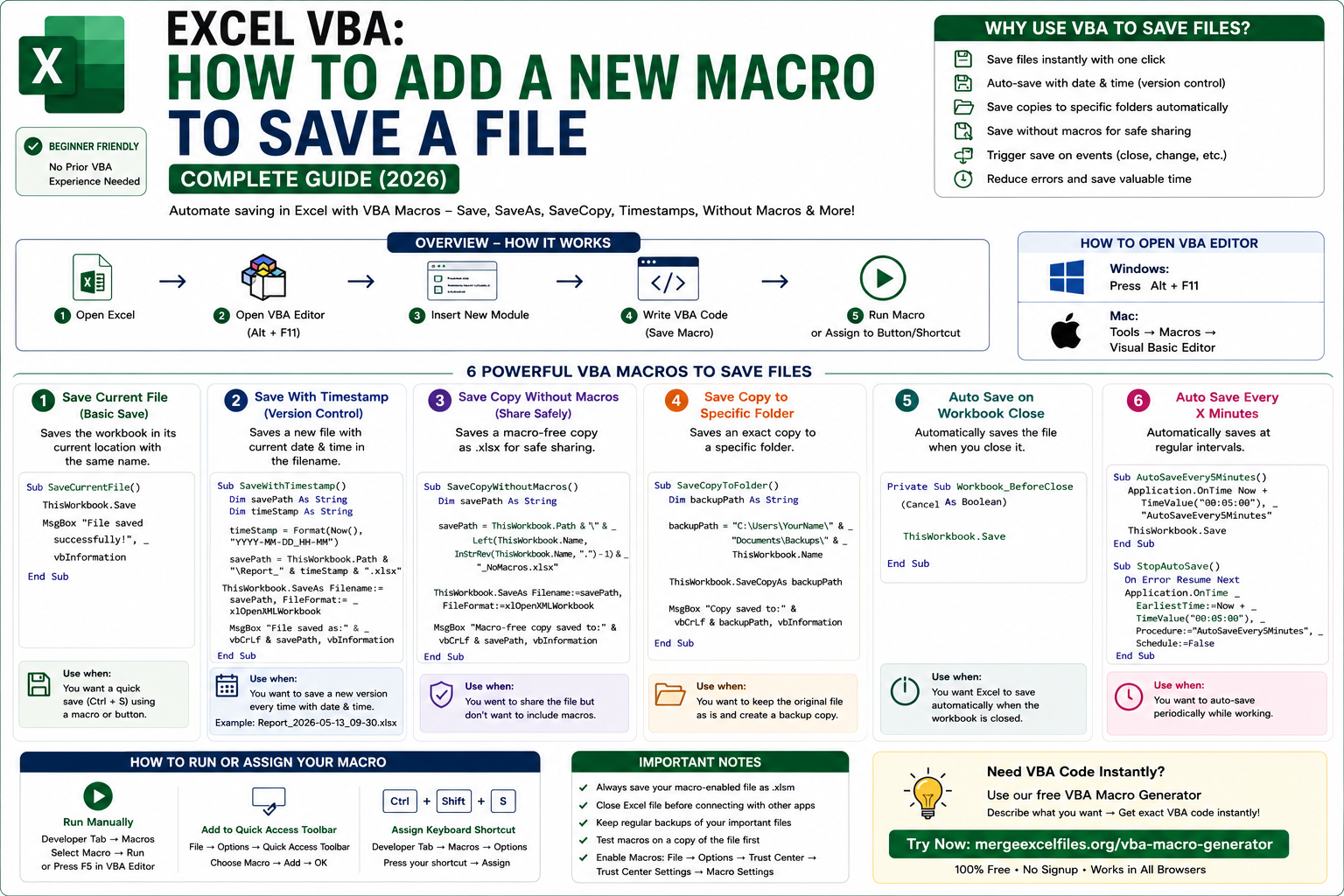
How to Add a New Macro to Save a File — Complete Guide (2026)
What Is a VBA Macro in Excel?
VBA (Visual Basic for Applications) is Excel's built-in programming language. A macro is a set of VBA instructions that automates tasks you would otherwise do manually.
When it comes to saving files, a VBA macro can:
- Save the current workbook instantly
- Save with a custom filename including today's date
- Save a copy to a specific folder automatically
- Save without macros (as .xlsx)
- Trigger a save when you close the workbook or change a sheet
- Save with a keyboard shortcut you define yourself
Step 1 — How to Open the VBA Editor in Excel
Before adding any macro, you need to open the VBA editor.
On Windows: Press Alt + F11 — this opens the Visual Basic Editor instantly.
On Mac: Go to Tools → Macros → Visual Basic Editor
Alternative method (both platforms):
- Go to the Developer tab in the ribbon
- Click Visual Basic
Don't see the Developer tab? Go to File → Options → Customize Ribbon → check "Developer" on the right side → click OK.
Step 2 — How to Add a New Module for Your Macro
Once the VBA editor is open:
- In the left panel (Project Explorer), find your workbook name
- Right-click on it
- Click Insert → Module
- A blank white code window opens on the right — this is where you write your macro
Every macro you write goes inside this module. Now let's write the actual save macros.
Method 1 — Basic Macro to Save the Current File
This is the simplest save macro. It saves the workbook exactly as it is, in its current location with its current filename.
vba
Sub SaveCurrentFile()
    ThisWorkbook.Save
    MsgBox "File saved successfully!", vbInformation
End Sub
How it works:
ThisWorkbookrefers to the workbook containing the macro.Savesaves it just like pressing Ctrl + SMsgBoxshows a confirmation popup (optional — remove it if you prefer silent saving)
To run this macro:
- Press F5 inside the VBA editor, or
- Go to Developer → Macros → SaveCurrentFile → Run, or
- Assign it to a button (covered below)
Method 2 — Macro to Save the File With a Timestamp in the Filename
This is one of the most popular save macros among USA business users. It saves a new version of your file every time, with today's date and time in the filename — perfect for version control.
vba
Sub SaveWithTimestamp()
    Dim savePath As String
    Dim timeStamp As String

    ' Format: YYYY-MM-DD_HH-MM
    timeStamp = Format(Now(), "YYYY-MM-DD_HH-MM")

    ' Save to same folder as the original file
    savePath = ThisWorkbook.Path & "\" & "Report_" & timeStamp & ".xlsx"

    ThisWorkbook.SaveAs Filename:=savePath, FileFormat:=xlOpenXMLWorkbook

    MsgBox "File saved as: " & savePath, vbInformation
End Sub
Example output filename: Report_2026-05-13_09-30.xlsx
Customize the save location: Replace ThisWorkbook.Path & "\" with a specific folder path:
vba
savePath = "C:\Users\YourName\Documents\Reports\" & "Report_" & timeStamp & ".xlsx"
Method 3 — Macro to Save a Copy of the File Without Macros
This is extremely useful when you need to share an Excel file with someone but don't want to include your VBA macros — either for security reasons or because the recipient doesn't need them.
vba
Sub SaveCopyWithoutMacros()
    Dim savePath As String

    ' Save copy in same folder with "_NoMacros" suffix
    savePath = ThisWorkbook.Path & "\" & _
               Left(ThisWorkbook.Name, InStrRev(ThisWorkbook.Name, ".") - 1) & _
               "_NoMacros.xlsx"

    ' Save as xlsx (xlOpenXMLWorkbook) — this format strips all macros
    ThisWorkbook.SaveAs Filename:=savePath, FileFormat:=xlOpenXMLWorkbook

    MsgBox "Macro-free copy saved to: " & savePath, vbInformation
End Sub
Why .xlsx removes macros: The .xlsx format does not support VBA code. When you save as .xlsx, Excel automatically strips all macros. Your original .xlsm file remains unchanged.
Want an even simpler way? Use our free VBA Macro Generator — describe what you need and get the exact code instantly.
Method 4 — Macro to SaveCopy to a Specific Folder
SaveCopyAs is different from SaveAs — it saves an exact copy of the file to a new location without changing the currently active workbook's name or path.
vba
Sub SaveCopyToFolder()
    Dim backupPath As String

    ' Define backup folder
    backupPath = "C:\Users\YourName\Documents\Backups\" & ThisWorkbook.Name

    ' SaveCopyAs keeps the original workbook open and unchanged
    ThisWorkbook.SaveCopyAs Filename:=backupPath

    MsgBox "Backup copy saved to: " & backupPath, vbInformation
End Sub
Key difference — SaveAs vs SaveCopyAs:
| Feature | SaveAs | SaveCopyAs | | Changes active workbook path | ✅ Yes | ❌ No | | Saves macros | Depends on format | ✅ Always (exact copy) | | Original workbook stays open | ❌ Switches to new file | ✅ Yes | | Best for | Renaming/versioning | Backups |
Method 5 — Auto-Save Macro When Closing the Workbook
This macro runs automatically every time the user closes the workbook — no button click needed.
vba
Private Sub Workbook_BeforeClose(Cancel As Boolean)
    ' Ask user if they want to save before closing
    Dim response As Integer
    response = MsgBox("Do you want to save before closing?", vbYesNoCancel, "Save File")

    If response = vbYes Then
        ThisWorkbook.Save
    ElseIf response = vbCancel Then
        Cancel = True  ' Stop the workbook from closing
    End If
    ' If No, workbook closes without saving
End Sub
Important: This macro goes in the ThisWorkbook module, not a regular Module.
To add it:
- In the VBA editor, double-click ThisWorkbook in the Project Explorer
- In the dropdown at the top of the code window, select Workbook
- In the second dropdown, select BeforeClose
- Paste the code
Method 6 — Auto-Save Every N Minutes
This macro saves your file automatically every 5 minutes while you're working — like an auto-save feature you control completely.
vba
' Place this in a regular Module
Dim nextSave As Date

Sub StartAutoSave()
    nextSave = Now + TimeValue("00:05:00")  ' Every 5 minutes
    Application.OnTime nextSave, "AutoSaveNow"
    MsgBox "Auto-save started — saving every 5 minutes.", vbInformation
End Sub

Sub AutoSaveNow()
    ThisWorkbook.Save
    ' Schedule the next save
    nextSave = Now + TimeValue("00:05:00")
    Application.OnTime nextSave, "AutoSaveNow"
End Sub

Sub StopAutoSave()
    On Error Resume Next
    Application.OnTime nextSave, "AutoSaveNow", , False
    MsgBox "Auto-save stopped.", vbInformation
End Sub
Run StartAutoSave to begin and StopAutoSave to end. Change "00:05:00" to any interval you want.
How to Assign a Save Macro to a Keyboard Shortcut
Running a macro from the Developer menu every time is inconvenient. Here's how to assign your save macro to a custom keyboard shortcut:
Method A — Assign shortcut when recording:
- Go to Developer → Record Macro
- In the dialog, set a Shortcut key (e.g., Ctrl + Shift + S)
- Stop recording immediately
- Open the VBA editor and replace the recorded code with your save macro
Method B — Assign shortcut to existing macro:
- Go to Developer → Macros
- Select your macro name (e.g., SaveCurrentFile)
- Click Options
- Enter a shortcut letter in the Shortcut key field
- Click OK
Recommended shortcuts for save macros:
- Ctrl + Shift + S — Save with timestamp
- Ctrl + Shift + B — Save backup copy
- Ctrl + Shift + X — Save copy without macros
How to Add a Save Button to Your Excel Sheet
A button on the sheet is the most user-friendly way to trigger a save macro — especially useful if other people use your workbook.
How to add a button:
- Go to Developer → Insert → Button (Form Control)
- Draw the button on your sheet
- In the "Assign Macro" dialog that appears, select your save macro
- Click OK
- Right-click the button → Edit Text → rename it "Save File" or "Save Backup"
Now anyone who uses the workbook can click the button to save — no VBA knowledge needed.
How to Save a File Using VBA SaveAs With Different Formats
vba
Sub SaveInDifferentFormats()
    Dim basePath As String
    basePath = ThisWorkbook.Path & "\"

    ' Save as .xlsx (no macros)
    ThisWorkbook.SaveAs basePath & "Report.xlsx", xlOpenXMLWorkbook

    ' Save as .xlsm (with macros)
    ThisWorkbook.SaveAs basePath & "Report.xlsm", xlOpenXMLWorkbookMacroEnabled

    ' Save as .csv (current sheet only)
    ThisWorkbook.SaveAs basePath & "Report.csv", xlCSV

    ' Save as .pdf
    ThisWorkbook.ExportAsFixedFormat Type:=xlTypePDF, _
        Filename:=basePath & "Report.pdf"
End Sub
Common VBA Save Errors and How to Fix Them
Error: "Run-time error 1004 — Document not saved" Cause: The file path doesn't exist or you don't have write permission. Fix: Make sure the destination folder exists before running SaveAs. Add this check:
vba
If Dir("C:\YourFolder\", vbDirectory) = "" Then MkDir "C:\YourFolder\"
Error: "Cannot save a shared workbook with SaveAs" Cause: The workbook is shared (co-authoring mode). Fix: Unshare the workbook first — Review → Share Workbook → uncheck sharing.
Error: Macro runs but file is still .xlsm after SaveAs to .xlsx Cause: The FileFormat parameter is missing or wrong. Fix: Always explicitly set FileFormat:=xlOpenXMLWorkbook for .xlsx.
Frequently Asked Questions
How do I add a new macro in Excel to save a file?
Press Alt + F11 to open the VBA editor, right-click your workbook in the Project Explorer, click Insert → Module, and paste your save macro code. Then press F5 to run it or assign it to a keyboard shortcut via Developer → Macros → Options.
What is the VBA code to save an Excel file?
The simplest code is ThisWorkbook.Save — this saves the file exactly like pressing Ctrl + S. For SaveAs with a new name: ThisWorkbook.SaveAs Filename:="C:\path\newname.xlsx", FileFormat:=xlOpenXMLWorkbook
How do I save a copy of an Excel file without macros using VBA?
Use SaveAs with the xlOpenXMLWorkbook format: ThisWorkbook.SaveAs Filename:="copy.xlsx", FileFormat:=xlOpenXMLWorkbook. The .xlsx format automatically strips all VBA macros from the saved copy.
How do I save an Excel file automatically with VBA?
Use Application.OnTime to schedule automatic saves, or use the Workbook_BeforeClose event to trigger a save when the user closes the file. Both methods are shown in full in this guide above.
How do I add a keyboard shortcut to a save macro in Excel?
Go to Developer → Macros → select your macro → click Options → enter a shortcut letter (e.g., S for Ctrl + Shift + S) → click OK. Your macro will now run whenever you press that key combination.
What is the difference between Save, SaveAs, and SaveCopyAs in VBA?
Save overwrites the current file. SaveAs saves to a new filename and switches the active workbook to the new file. SaveCopyAs saves an exact copy to a new location but keeps the original workbook active and unchanged.
How do I save an Excel file as PDF using VBA?
Use ThisWorkbook.ExportAsFixedFormat Type:=xlTypePDF, Filename:="C:\path\file.pdf" — this exports the entire workbook as a PDF without changing the Excel file itself.
Final Thoughts
Adding a VBA macro to save your Excel files is one of the most practical automation skills you can learn. Whether you need a simple one-click save button, an auto-save that runs every few minutes, a timestamped backup system, or a way to strip macros before sharing — VBA handles all of it with just a few lines of code.
The macros in this guide cover every common save scenario USA Excel users face in 2026. Copy the one that fits your needs, paste it into the VBA editor, and you're done.
Don't want to write VBA yourself? Try our free tools:
- 🔗 VBA Macro Generator — describe what you need, get working VBA code instantly
- 🔗 Merge Excel Files — combine multiple workbooks in seconds
- 🔗 Split Excel Files — split large workbooks by sheet
- 🔗 Excel to Word Converter — convert spreadsheets to Word documents
- 🔗 AI Excel Assistant — ask any VBA or Excel question, get instant answers
Last updated: May 2026 | MergeExcelFiles.org — Free Excel Tools for USA Users
Tags
excel vba add new macro to save file excel vba save file vba macro to save excel file excel vba saveas excel vba save workbook excel vba savecopy without macros excel vba save copy excel vba auto save excel vba save with timestamp excel vba keyboard shortcut save how to add macro in excel excel vba savecopyas excel vba save as xlsx excel vba save as pdf open vba editor excel excel developer tab excel vba for loop vba macro generator free excel vba tool mergeexcelfiles.org