How to Merge Excel Files Safely in 2026 — Without Losing Data, Formatting, or Privacy
Introduction
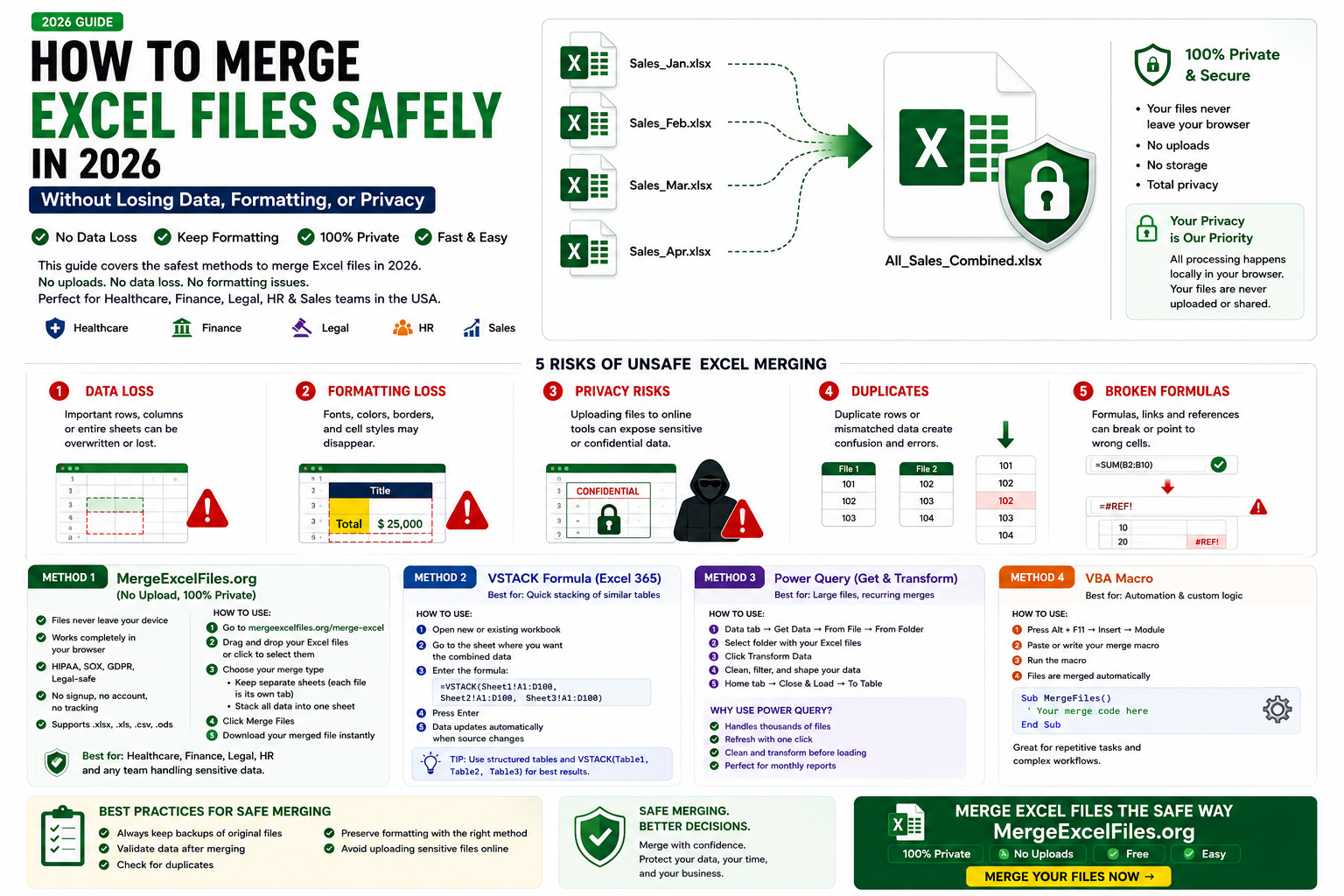
Most guides about merging Excel files focus on how to do it. This one focuses on how to do it safely — because in 2026, the risks of merging Excel files incorrectly are very real.
Every year, USA businesses lose critical data because someone used the wrong merge method. Finance teams accidentally overwrite formulas. HR departments expose employee data by uploading confidential files to random online tools. Sales managers end up with 47 duplicate rows and no idea where they came from.
This guide is different. Yes, we cover every merge method available in 2026 — including the brand-new VSTACK formula in Excel 365. But we also cover what every other guide skips: data loss prevention, formatting preservation, privacy protection, and the most common merge mistakes that cost USA businesses hours of cleanup every week.
Whether you work in healthcare, finance, legal, HR, or sales — this is the only merge Excel files guide you need for 2026.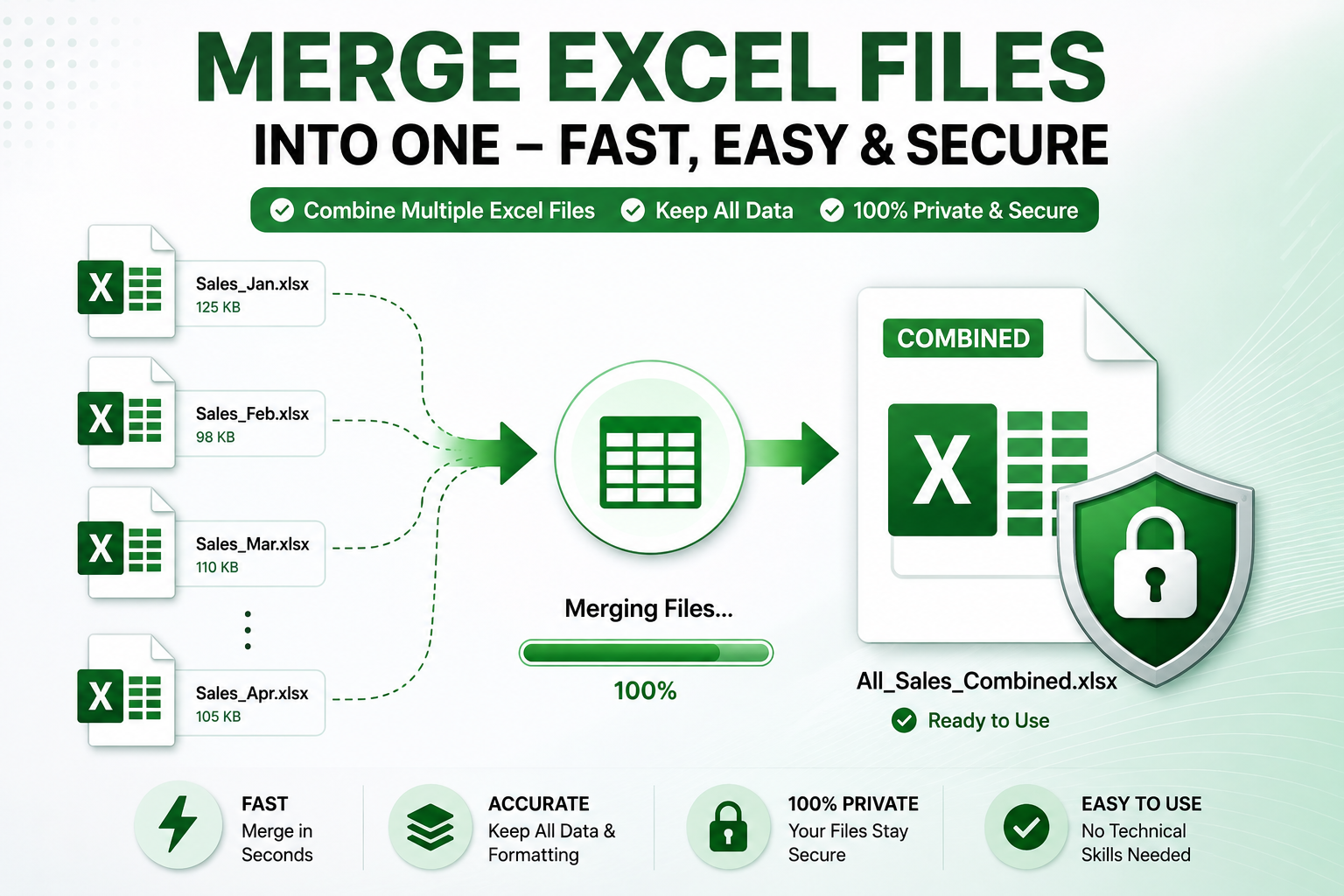
Why "Safe" Merging Matters More Than Ever in 2026
Before we get into the methods, let's talk about what can go wrong — because understanding the risks is what makes you choose the right method.
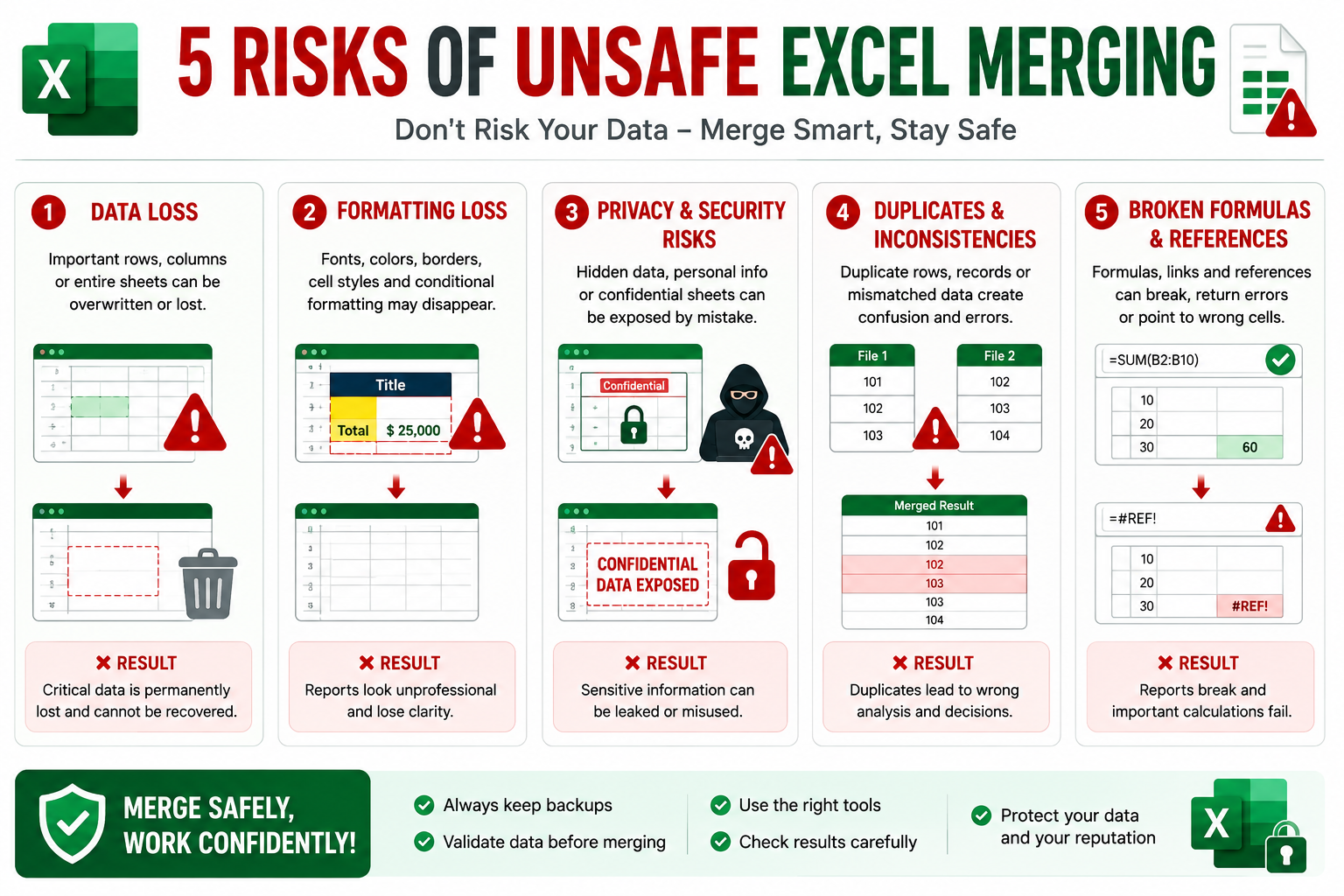
Risk 1 — Data Loss During Merge
The most common and painful merge mistake. When you use Excel's built-in Merge & Center button on data cells, Excel silently deletes everything except the top-left cell's content. No warning. No undo prompt. Just gone.
Real scenario: A USA accounting firm merges Q1, Q2, Q3, and Q4 expense files by copy-pasting into a master sheet. Someone accidentally copies over the header row in Q2 and doesn't notice until the annual audit — weeks later.
Risk 2 — Formatting Loss
Different Excel files often have different fonts, column widths, color schemes, and number formats. A naive copy-paste merge strips all of this — turning your carefully formatted reports into a wall of unstyled data.
Risk 3 — Privacy Violations From Online Upload Tools
This is the biggest risk for USA enterprise users in 2026. Many "free online merge tools" require you to upload your files to their servers. For anyone working with:
- HIPAA-protected health data (patient records, insurance claims)
- Financial data (payroll, revenue, client balances)
- Legal documents (contracts, settlements, case data)
- HR records (employee salaries, performance reviews, SSNs)
...uploading to a third-party server is a compliance violation — regardless of what their privacy policy says.
Risk 4 — Duplicate Rows
When merging files that share some of the same data, duplicates are almost inevitable without a proper deduplication step. A 10,000-row merged file with 800 duplicate rows will corrupt every pivot table, VLOOKUP, and chart that depends on it.
Risk 5 — Broken Formulas
If your source files contain formulas that reference cells within the same workbook, those references break when the data is moved to a new workbook. =SUM(B2:B100) becomes =SUM(#REF!) and your entire summary sheet stops working.
Method 1 — The Safest Method: MergeExcelFiles.org (No Upload, 100% Private)
For USA users who need to merge Excel files without any privacy risk, our free browser-based tool is the safest option available in 2026.
Why it's the safest:
Every other online merge tool uploads your files to their servers — even if they claim to delete them afterward. You have no way to verify that.
MergeExcelFiles.org works completely differently. All processing happens inside your own browser using client-side JavaScript. Your files never travel over the internet. They never touch any server. They never leave your computer.
This means:
- ✅ HIPAA-safe — no PHI leaves your device
- ✅ SOX compliant — financial data stays local
- ✅ GDPR friendly — no data transfer to third parties
- ✅ Legal-safe — confidential documents stay confidential
- ✅ No signup, no account, no tracking
How to use it:
- Go to mergeexcelfiles.org/merge-excel
- Drag and drop your Excel files — or click to select them
- Choose your merge type:
- Keep separate sheets — each file becomes its own tab
- Stack all data into one sheet — all rows combined
- Click Merge Files
- Download your merged file instantly
Supported formats: .xlsx, .xls, .csv, .ods
Best for: Healthcare, finance, legal, HR, and any USA team handling sensitive or regulated data.
Method 2 — VSTACK Formula (New in Excel 365 — 2026's Best Built-in Method)
VSTACK is Excel 365's newest and most powerful formula for stacking data from multiple sheets or ranges vertically. It was introduced in late 2022 but has become the go-to method for Excel 365 users in 2026.
Why VSTACK is a game-changer:
- No VBA needed
- No Power Query setup
- Updates automatically when source data changes
- Handles multiple sheets in one formula
Basic VSTACK syntax:
=VSTACK(Sheet1!A2:D100, Sheet2!A2:D100, Sheet3!A2:D100)
This stacks the data from Sheet1, Sheet2, and Sheet3 into one continuous range — automatically.
VSTACK with dynamic range (handles any number of rows):
=VSTACK(Sheet1!A2:D1000, Sheet2!A2:D1000, Sheet3!A2:D1000)
VSTACK to merge data from multiple files (same workbook):
- Open all your Excel files
- Copy each file's data into separate sheets in one workbook (Sheet1, Sheet2, Sheet3...)
- Create a new "Merged" sheet
- In cell A2, enter the VSTACK formula referencing all sheets
VSTACK with header from first sheet only:
=VSTACK(Sheet1!A1:D1, Sheet1!A2:D1000, Sheet2!A2:D1000, Sheet3!A2:D1000)
This includes the header row from Sheet1 only — no duplicate headers.
Important: VSTACK is only available in Excel 365 (Microsoft 365 subscription) and Excel 2024. It does not work in Excel 2019 or earlier.
Best for: Excel 365 users who want a formula-based, automatically-updating merge on data within the same workbook.
Method 3 — Power Query (Best for Recurring Monthly Merges)
Power Query remains the gold standard for merging Excel files from a folder on a recurring basis — for example, combining a new monthly report with previous months every month automatically.
The key advantage in 2026: Once you set up the Power Query connection, merging next month's file takes one click — just add the new file to the folder and click Refresh.
Step-by-step setup:
- Put all Excel files to merge into one dedicated folder on your computer
- Open a new blank Excel workbook
- Go to Data → Get Data → From File → From Folder
- Browse to your folder and click OK
- Click Combine & Transform Data
- Select which sheet to import from each file (e.g., Sheet1)
- Click OK — Power Query merges all files automatically
- Click Close & Load
For next month: Add the new file to the folder → click Data → Refresh All. Done.
Privacy note: Power Query processes files locally on your computer — no data is sent to any server. It's safe for sensitive data.
Best for: Monthly reports, recurring data imports, teams that add new files regularly.
Method 4 — VBA Macro (Best for Automated Bulk Merging)
For merging large numbers of files automatically — or triggering a merge as part of a larger workflow — VBA is the most powerful option.
Safe VBA macro to merge all Excel files in a folder:
vba
Sub SafeMergeExcelFiles()
    Dim folderPath As String
    Dim fileName As String
    Dim masterWB As Workbook
    Dim sourceWB As Workbook
    Dim destSheet As Worksheet
    Dim lastRow As Long
    Dim masterLastRow As Long

    ' ── Safety check: turn off screen flicker ──
    Application.ScreenUpdating = False
    Application.DisplayAlerts = False

    folderPath = "C:\Users\YourName\Documents\MergeFolder\"

    Set masterWB = ThisWorkbook

    ' Create or clear the MergedData sheet
    On Error Resume Next
    masterWB.Sheets("MergedData").Delete
    On Error GoTo 0
    Set destSheet = masterWB.Sheets.Add
    destSheet.Name = "MergedData"

    Dim isFirstFile As Boolean
    isFirstFile = True
    fileName = Dir(folderPath & "*.xlsx")

    Do While fileName <> ""
        If fileName <> ThisWorkbook.Name Then
            Set sourceWB = Workbooks.Open(folderPath & fileName, ReadOnly:=True)

            With sourceWB.Sheets(1)
                lastRow = .Cells(Rows.Count, 1).End(xlUp).Row
                masterLastRow = destSheet.Cells(Rows.Count, 1).End(xlUp).Row

                If isFirstFile Then
                    ' Copy header + data for first file
                    .Rows("1:" & lastRow).Copy destSheet.Rows(1)
                    isFirstFile = False
                Else
                    ' Skip header row for subsequent files
                    If lastRow > 1 Then
                        .Rows("2:" & lastRow).Copy destSheet.Rows(masterLastRow + 1)
                    End If
                End If
            End With

            sourceWB.Close SaveChanges:=False
        End If
        fileName = Dir()
    Loop

    ' Auto-fit columns for clean presentation
    destSheet.Columns.AutoFit

    Application.ScreenUpdating = True
    Application.DisplayAlerts = True

    MsgBox "Merge complete! All files merged into 'MergedData' sheet.", vbInformation
End Sub
Safety features in this macro:
- Opens source files as ReadOnly — never modifies originals
- Skips header rows after the first file — no duplicate headers
- Auto-fits columns after merge
- Restores ScreenUpdating and DisplayAlerts even if an error occurs
Best for: Merging 10-500+ files automatically, scheduled tasks, complex workflows.
Method 5 — Manual Copy-Paste With Safety Checklist
For occasional one-time merges of 2-3 small files, manual copy-paste is still perfectly valid — as long as you follow these safety steps.
Safe copy-paste merge checklist:
Before you start:
- ☑️ Make backup copies of all source files before touching anything
- ☑️ Verify all source files open without errors
- ☑️ Check that column headers match across all files
- ☑️ Note the row count in each file (so you can verify after merging)
While merging:
- ☑️ Always copy from source → paste into destination (never cut)
- ☑️ Use Paste Special → Values if source files have formulas you don't need
- ☑️ Skip the header row in every file after the first one
- ☑️ Keep a running count of rows pasted
After merging:
- ☑️ Verify total row count = sum of all source files (minus duplicate headers)
- ☑️ Run Data → Remove Duplicates to catch any duplicate rows
- ☑️ Check that no formula columns show #REF! errors
- ☑️ Save as a new file — never overwrite your source files
Best for: One-time merges of 2-3 small files where you need full manual control.
![Image suggestion: Checklist graphic with green checkmarks — "Before", "During", "After" merge steps — clean and scannable]
How to Merge Excel Files Without Losing Formatting
Formatting loss is the second most common merge complaint after data loss. Here's how to preserve formatting in each method:
MergeExcelFiles.org: Preserves all cell formatting, column widths, and number formats automatically — no action needed.
Power Query: Preserves data values and data types but strips most cell formatting (colors, fonts, borders). If formatting matters, reapply it using a Table Style after loading.
VBA Copy method: Use .Copy (not .Value assignment) to preserve formatting:
vba
sourceSheet.UsedRange.Copy
destSheet.Cells(lastRow + 1, 1).PasteSpecial xlPasteAllUsingSourceTheme
Manual copy-paste: Use Paste Special → Keep Source Formatting (Ctrl + Shift + V → K) instead of plain Ctrl + V.
How to Merge Excel Files Without Duplicate Rows
After merging, always run a deduplication check — especially if your source files might share some of the same records.
Method 1 — Excel's built-in Remove Duplicates:
- Click any cell in your merged data
- Go to Data → Remove Duplicates
- Select which columns to check for duplicates (usually all columns, or a unique ID column)
- Click OK
- Excel reports how many duplicates were removed
Method 2 — UNIQUE formula (Excel 365):
=UNIQUE(A2:D1000)
This returns only unique rows from your merged range — no duplicates. Combine with VSTACK for a fully deduplicated merge in one formula:
=UNIQUE(VSTACK(Sheet1!A2:D500, Sheet2!A2:D500, Sheet3!A2:D500))
Method 3 — Power Query Remove Duplicates: In Power Query editor: right-click any column → Remove Duplicates. Or select all columns → Home → Remove Rows → Remove Duplicates.
![Image suggestion: Excel screenshot showing Data → Remove Duplicates dialog with columns selected and "47 duplicate values found and removed" message]
How to Merge Excel Files on a Mac in 2026
Every method in this guide works on Mac — with minor differences:
- MergeExcelFiles.org — works identically on Safari, Chrome, and Firefox on Mac
- Power Query — available in Excel for Mac 2016 and later (Data → Get Data)
- VBA — works on Mac, but file paths use forward slashes:
"/Users/YourName/Documents/MergeFolder/" - VSTACK — works identically on Mac Excel 365
- Copy-paste — use Cmd + C / Cmd + V instead of Ctrl equivalents
Merge Excel Files — Speed Comparison (2026)
Here's how long each method takes for merging 10 files with 1,000 rows each (10,000 total rows):
| Method | Setup Time | Merge Time | Best For | | MergeExcelFiles.org | 0 min | Under 10 seconds | Any user, any file size | | VSTACK formula | 5 min | Instant (formula) | Excel 365, same workbook | | Power Query | 10 min | Under 30 seconds | Recurring monthly merges | | VBA Macro | 15 min | Under 15 seconds | Bulk automation | | Manual Copy-Paste | 0 min | 5-15 minutes | 2-3 small files only |
Common Merge Excel Files Mistakes — and How to Avoid Them
Mistake 1 — Using Merge & Center on data cells This deletes all but the top-left cell's content. Use CONCAT formulas or our merge tool instead.
Mistake 2 — Uploading sensitive files to unverified online tools Always check if the tool processes files locally or uploads them to a server. If you can't verify it's local — don't use it for sensitive data.
Mistake 3 — Not making backups before merging Always keep copies of your original source files. Merge operations cannot be undone after saving.
Mistake 4 — Merging files with different column structures If Column A in File 1 is "First Name" but Column A in File 2 is "Customer ID", a blind row-stack merge will mix them up. Always verify column headers match before merging.
Mistake 5 — Forgetting to remove duplicate headers When stacking rows from multiple files, only copy the header row from the first file. Every subsequent file should start from Row 2.
Mistake 6 — Ignoring Excel's row limit Excel supports a maximum of 1,048,576 rows per sheet. If your merged data exceeds this, use Power Query with the Data Model (which handles millions of rows) or split into multiple sheets.
Frequently Asked Questions
How do I merge Excel files without losing data?
Use MergeExcelFiles.org or Power Query — both preserve all data during the merge. If using copy-paste, always use Paste Special → Values to avoid formula reference errors, and never use Merge & Center on data cells.
How do I merge Excel files safely without uploading them?
Use MergeExcelFiles.org — your files never leave your browser. All processing is done locally on your device. This makes it safe for HIPAA, financial, legal, and HR data. Power Query and VBA also process files locally.
What is the best method to merge Excel files in 2026?
For most USA users, MergeExcelFiles.org is the fastest and safest — zero setup, no upload, instant results. For Excel 365 users who want an auto-updating formula solution, VSTACK is the best new option in 2026. For recurring monthly merges, Power Query is the gold standard.
How do I merge Excel files in Excel 365 using VSTACK?
Use =VSTACK(Sheet1!A2:D1000, Sheet2!A2:D1000) in a new sheet to stack data from multiple sheets vertically. Combine with =UNIQUE(VSTACK(...)) to automatically remove duplicates.
Can I merge Excel files on a Mac?
Yes — all methods work on Mac. MergeExcelFiles.org works in any Mac browser. Power Query is available in Excel for Mac 2016+. VSTACK works in Excel 365 for Mac.
How do I merge Excel files without duplicate rows?
After merging, use Data → Remove Duplicates. In Excel 365, wrap your VSTACK formula with UNIQUE: =UNIQUE(VSTACK(Sheet1!A2:D500, Sheet2!A2:D500)).
Is it safe to use online tools to merge Excel files with sensitive data?
Only if the tool processes files locally in your browser — like MergeExcelFiles.org. Tools that upload files to a server are not safe for HIPAA, financial, or legal data. Always verify before uploading sensitive files anywhere.
How do I merge Excel files without losing formatting?
Use MergeExcelFiles.org (preserves all formatting automatically) or the VBA .Copy + PasteSpecial xlPasteAllUsingSourceTheme method. Power Query and VSTACK strip cell formatting — reapply Table Styles after merging.
Final Thoughts
Merging Excel files in 2026 is faster and safer than ever — but only if you choose the right method for your situation. The wrong choice can mean lost data, lost formatting, compliance violations, or hours of cleanup.
Quick decision guide:
| Your Situation | Best Method | | Sensitive data (HIPAA, finance, legal, HR) | MergeExcelFiles.org — no upload | | Excel 365, same workbook, auto-update | VSTACK formula | | New file added every month | Power Query | | 50-500+ files, automated | VBA Macro | | 2-3 small files, one-time only | Manual copy-paste with checklist |
The bottom line: never upload sensitive Excel files to a tool you haven't verified. And always make backups before merging — no matter which method you use.
Try our free tools — 100% private, no upload, no signup:
- 🔗 Merge Excel Files — safe, private, instant merging in your browser
- 🔗 Split Excel Files — split large workbooks by sheet
- 🔗 VBA Macro Generator — generate safe merge macros in plain English
- 🔗 Formula Fixer — fix broken formulas after merging
- 🔗 AI Excel Assistant — ask any merge question, get instant expert answers
Tags
merge excel files merge excel files safely merge excel files without losing data merge excel files without uploading merge multiple excel files 2026 how to merge excel files merge excel files online free vstack excel vstack merge sheets power query merge excel files vba merge excel files merge excel files hipaa merge excel files privacy merge excel files mac merge excel files without duplicates merge excel files without losing formatting combine excel files merge excel files free excel merge tool 2026 mergeexcelfiles.org