How to Merge Two Excel Files Into One (Every Method Explained)
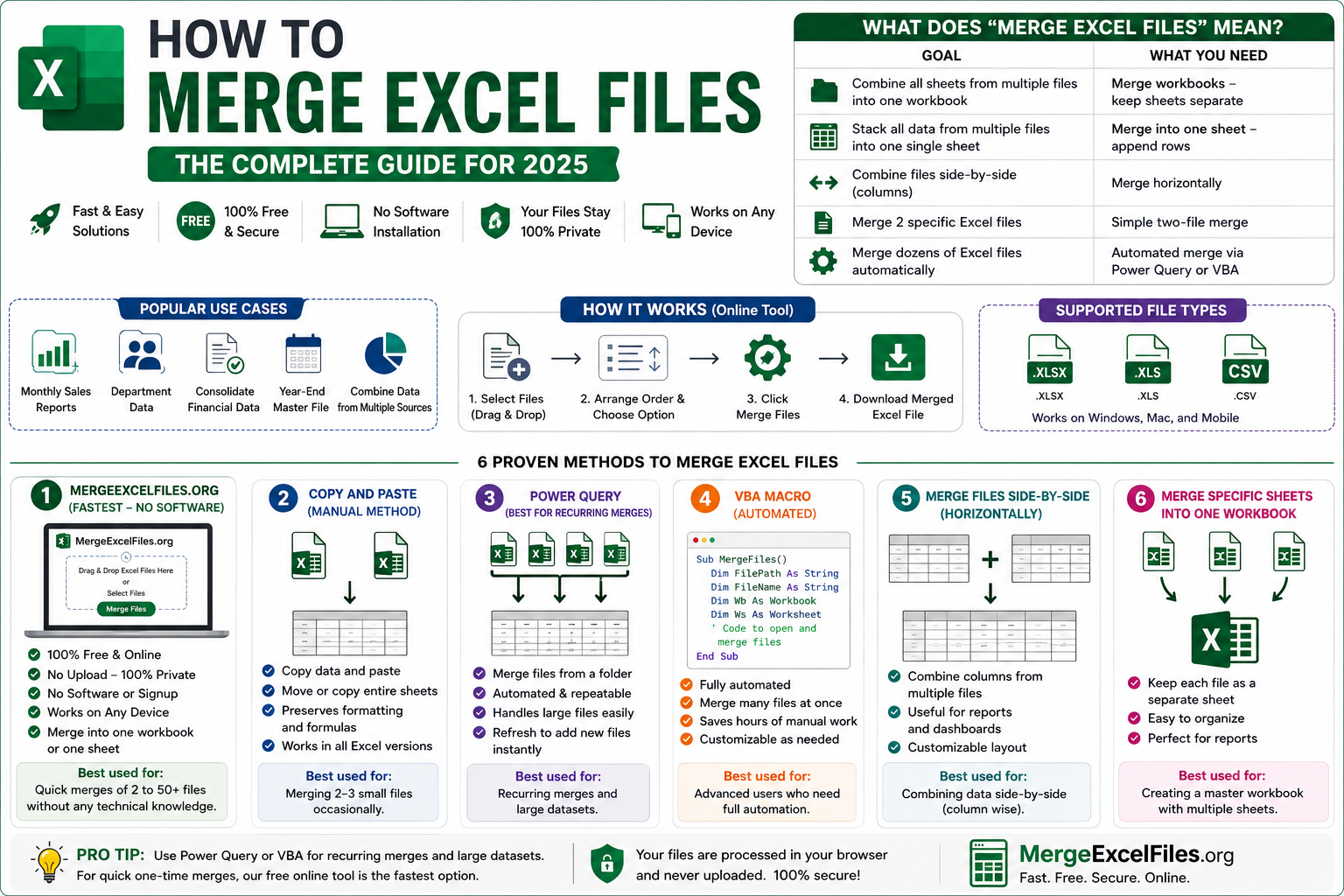
Merging two Excel files sounds simple — but Excel has no single "Merge" button. Depending on whether you want to combine sheets, stack rows, or match data by a common column, the right method changes.
This guide covers every way to merge two Excel files into one — from the quickest manual method to automated Power Query and VBA solutions.
What Does Merging Two Excel Files Mean?
Before picking a method, decide what result you need:
| Goal | What You Need |
|------|--------------|
| Both files as separate sheets in one workbook | Move or Copy method |
| All rows stacked into one sheet | Power Query Append |
| Match rows by a common column (like VLOOKUP) | Power Query Merge |
| Automate the process | VBA Macro |
| No software, instant result | MergeExcelFiles.org |
Method 1: Move or Copy Sheets (Quickest Manual Method)
This is the fastest way to merge two Excel files when you just want each file's sheets inside one workbook — without combining the actual data rows.
**Steps:**
-
Open both Excel files
-
In the source file, right-click the sheet tab you want to move
-
Click **Move or Copy**
-
In the "To book" dropdown, select your destination workbook
-
Choose where to place it under "Before sheet"
-
Check **Create a copy** to keep the original file intact
-
Click **OK**
-
Repeat for each sheet you want to bring over
**Example:**
| Source File | Sheet | Destination File |
|-------------|-------|-----------------|
| Sales_Jan.xlsx | Sheet1 | Combined.xlsx |
| Sales_Feb.xlsx | Sheet1 | Combined.xlsx |
After this, Combined.xlsx will have two sheets — one from each file — side by side.
**Limitation:** This keeps data on separate sheets. It does not stack or combine the rows into one flat sheet.
**Best used for:** Quickly combining 2 files where you want to keep each file's data on its own sheet.
Method 2: Copy and Paste (Stack Rows Into One Sheet)
If you want all rows from both files merged into a single sheet, the manual copy-paste method works fine for small datasets.
**Steps:**
-
Open both Excel files
-
In File 1, click the row number below your last header row to select all data rows (not the header)
-
Press **Ctrl + C** to copy
-
Switch to File 2 (or a new blank workbook)
-
Click the first empty row below the existing data
-
Press **Ctrl + V** to paste
**Important:** Only copy the header row once. If both files have identical headers, skip the header when copying from the second file to avoid duplicates.
| File | Rows | After Merge |
|------|------|-------------|
| Sales_Q1.xlsx | 500 rows | 1,000 rows in one sheet |
| Sales_Q2.xlsx | 500 rows | (combined) |
**Limitation:** Tedious for large files. No automation — you repeat this every time data updates.
**Best used for:** One-time merges of small files where both files have the same column structure.
Method 3: Power Query Append (Best for Stacking Rows)
Power Query is Excel's built-in data transformation tool. The **Append** feature stacks rows from two files into one table — and it updates automatically when the source files change.
**Steps:**
-
Open a new blank Excel workbook
-
Go to **Data → Get Data → From File → From Workbook**
-
Select your first Excel file and click **Import**
-
In the Navigator, select the sheet you want and click **Transform Data**
-
Power Query Editor opens — click **Close & Load To** and choose **Only Create Connection**
-
Repeat steps 2–5 for your second Excel file
-
Now go to **Data → Get Data → Combine Queries → Append**
-
Choose **Two tables**, select both connections
-
Click **OK**
-
Click **Close & Load** — the merged data loads into your workbook as a table
**Result:** All rows from both files are stacked into one clean table. Refresh the query anytime to pull in updated data.
**Best used for:** Regularly updated files where you want automatic merging. Best option when both files have the same columns.
Method 4: Power Query Merge (Match Rows by Common Column)
If you want to combine two files by matching on a common column — like a Customer ID or Order Number — use Power Query **Merge** (not Append).
**Steps:**
-
Load both files into Power Query as connections (same as Method 3, steps 1–6)
-
Go to **Data → Get Data → Combine Queries → Merge**
-
Select your first table in the top dropdown
-
Select your second table in the bottom dropdown
-
Click the matching column in each table (e.g., "Customer ID")
-
Choose **Join Kind** — Left Outer is most common (keeps all rows from File 1, adds matching data from File 2)
-
Click **OK**
-
In the result, click the expand icon on the new column to choose which columns to bring in from File 2
-
Click **Close & Load**
**Example:**
| File 1 (Orders) | File 2 (Customers) | Merged Result |
|-----------------|-------------------|---------------|
| Order ID, Customer ID, Amount | Customer ID, Name, Region | Order ID, Amount, Name, Region |
**Best used for:** Combining files that share a common key column — similar to a VLOOKUP but more powerful.
Method 5: VBA Macro (Automate the Merge)
For automating the merge of two Excel files — especially on a schedule or across many files — VBA is the most flexible option.
**VBA macro to merge two files into one workbook (separate sheets):**
```vba
Sub MergeTwoFiles()
Dim wb1 As Workbook

Dim wb2 As Workbook

Dim ws As Worksheet


' Open the two source files — update paths as needed

Set wb1 = Workbooks.Open("C:\Files\File1.xlsx")

Set wb2 = Workbooks.Open("C:\Files\File2.xlsx")


' Copy all sheets from File2 into File1

For Each ws In wb2.Sheets

    ws.Copy After:=wb1.Sheets(wb1.Sheets.Count)

Next ws


' Save the merged workbook

wb1.SaveAs "C:\Files\Merged.xlsx"


' Close File2 without saving

wb2.Close SaveChanges:=False


MsgBox "Files merged successfully!"
End Sub
```
**VBA macro to stack all rows from two files into one sheet:**
```vba
Sub MergeRowsFromTwoFiles()
Dim wb1 As Workbook, wb2 As Workbook

Dim ws1 As Worksheet, ws2 As Worksheet

Dim lastRow1 As Long, lastRow2 As Long


Set wb1 = Workbooks.Open("C:\Files\File1.xlsx")

Set wb2 = Workbooks.Open("C:\Files\File2.xlsx")


Set ws1 = wb1.Sheets(1)

Set ws2 = wb2.Sheets(1)


lastRow1 = ws1.Cells(Rows.Count, 1).End(xlUp).Row

lastRow2 = ws2.Cells(Rows.Count, 1).End(xlUp).Row


' Copy data from File2 (skip header row) and paste below File1 data

ws2.Range("A2:Z" & lastRow2).Copy

ws1.Cells(lastRow1 + 1, 1).PasteSpecial xlPasteValues


wb1.SaveAs "C:\Files\Merged_Rows.xlsx"

wb2.Close SaveChanges:=False


MsgBox "Rows merged successfully!"
End Sub
```
**How to run:**
-
Press **Alt + F11** to open the VBA editor
-
Go to **Insert → Module**
-
Paste the code and update the file paths
-
Press **F5** to run
Need the macro written for your exact file structure? Use our free **VBA Macro Generator** — describe what you need in plain English and get the code instantly.
**Best used for:** Scheduled or repeated merges, large files, automating across multiple file pairs.
Method 6: Use MergeExcelFiles.org (No Formula or Code Needed)
If you want to merge two Excel files instantly without writing formulas, opening Power Query, or touching any code — our free browser-based tool does it in seconds.
**How to use it:**
-
Upload both Excel files
-
Choose your merge type — combine as separate sheets or stack all rows into one sheet
-
Click Merge
-
Download your merged file
No data is ever sent to a server. Everything processes locally in your browser — 100% private. Works on Chrome, Edge, Safari, and Firefox on desktop and mobile.
**Best used for:** Instant one-click merges with no software, no formulas, and no code required.
Which Method Should You Use?
| Situation | Best Method |
|-----------|------------|
| Just need sheets side by side | Move or Copy |
| Stack rows, one-time only | Copy and Paste |
| Stack rows, auto-updates | Power Query Append |
| Match rows by a common column | Power Query Merge |
| Automate or schedule the merge | VBA Macro |
| No code, instant result | MergeExcelFiles.org |
Common Mistakes When Merging Two Excel Files
**Mistake 1 — Duplicate header rows**
When stacking rows from two files, copying the header from both files creates duplicate column names in row 1 and row 2. Always skip the header row when copying the second file.
**Mistake 2 — Mismatched column order**
If File 1 has columns in order A, B, C and File 2 has them in order B, A, C — stacking rows will mix up the data. Always check that column order matches before merging.
**Mistake 3 — Different data types in the same column**
If one file stores dates as text and another stores them as actual date values, the merged column will have mixed types. Clean data types in Power Query before merging.
**Mistake 4 — Using Move or Copy when you need combined rows**
Move or Copy keeps each file's data on a separate sheet — it does not combine rows. If you need one flat dataset, use Power Query Append or the copy-paste method instead.
Frequently Asked Questions
**How do I merge two Excel files into one?**
The quickest way is Move or Copy — right-click a sheet tab, click Move or Copy, and select the destination workbook. This places each file's sheets inside one workbook. For combining rows into one sheet, use Power Query Append or our free Merge Excel tool.
**How do I merge two Excel files with the same columns?**
Use Power Query Append. Load both files as connections, go to Combine Queries → Append, select both tables, and load the result. All rows from both files stack into one table with matching columns aligned correctly.
**How do I merge two Excel files by matching a column?**
Use Power Query Merge. Load both files, go to Combine Queries → Merge, click the matching column in each table, choose Left Outer join, and expand the result. This works like a VLOOKUP across two files.
**Can I merge two Excel files without opening them?**
Yes — use our free Merge Excel tool at mergeexcelfiles.org. Upload both files, choose your merge type, and download the result. No need to open either file in Excel.
**How do I merge two Excel files using VBA?**
Use Workbooks.Open to open both files, then loop through the sheets with a For Each loop and use ws.Copy to copy sheets into the destination workbook. See the full VBA code in Method 5 above.
**Does merging two Excel files work on Mac?**
Yes. Power Query is available on Excel for Mac 2019 and Microsoft 365 for Mac. The Move or Copy method and copy-paste method work on all Mac Excel versions. Our online merge tool works on Safari and Chrome on Mac.
**What is the difference between Append and Merge in Power Query?**
Append stacks rows from two tables on top of each other — use this when both files have the same columns. Merge combines columns from two tables by matching on a common key column — use this when you want to look up and add data from one file to another.
Final Thoughts
Merging two Excel files is one of the most common data tasks — and now you have six ways to do it depending on your situation:
-
Use **Move or Copy** when you just need sheets together in one workbook
-
Use **Copy and Paste** for a quick one-time row stack
-
Use **Power Query Append** for automatic, repeatable row merging
-
Use **Power Query Merge** when matching rows by a common column
-
Use **VBA** when you need to automate the process
-
Use **MergeExcelFiles.org** for instant no-code merging
Try our free Excel tools — no upload, no signup:
🔗 Merge Excel Files — combine two or more workbooks instantly
🔗 Split Excel Files — split sheets, columns, and names
🔗 VBA Macro Generator — generate macros in plain English
🔗 Mail Merge Tool — mail merge from Excel to Word
🔗 Excel Formula Fixer — fix broken formulas instantly