How to Split First and Last Name in Excel — Every Method Explained
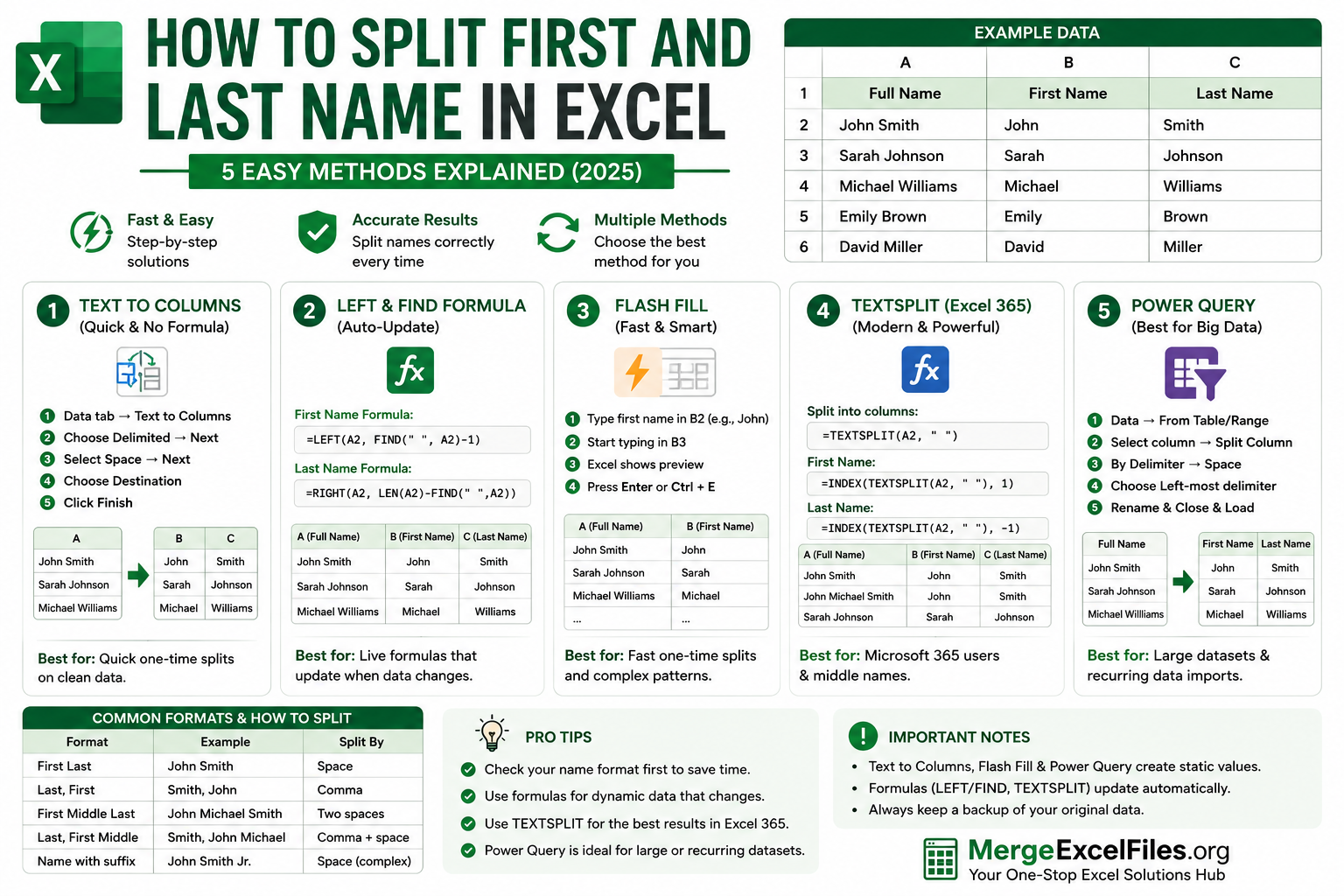
The method you use depends on how your names are formatted. Check your data first:
| Format | Example | Split By | | First Last | John Smith | Space | | Last, First | Smith, John | Comma | | First Middle Last | John Michael Smith | Two spaces | | Last, First Middle | Smith, John Michael | Comma + space | | Name with suffix | John Smith Jr. | Space (complex) |
Knowing your format upfront will save you a lot of time. The most common format in USA datasets is "First Last" separated by a single space — and that's what most of the methods below focus on first.
Method 1: Split First and Last Name Using Text to Columns
Text to Columns is Excel's built-in tool for splitting cell content. It's the fastest method for a one-time split and requires no formulas at all.
How to use Text to Columns:
- Select the column containing your full names (e.g., column A)
- Go to the Data tab in the Excel ribbon
- Click Text to Columns
- In Step 1 of the wizard, choose Delimited and click Next
- In Step 2, check the Space checkbox (uncheck all others) and click Next
- In Step 3, choose the destination — click on an empty cell (e.g., B1) so the results go into columns B and C instead of overwriting column A
- Click Finish
Excel will split every name at the space character — first names go to column B, last names go to column C.
For "Last, First" format:
In Step 2, check Comma instead of Space. The last name goes to column B and the first name goes to column C.
Important limitation: Text to Columns creates static results. If your source names in column A change later, columns B and C will not update. It also struggles with names that have more than one space (middle names, double-barreled names).
Best used for: Quick one-time splits on clean "First Last" data with no middle names.
Method 2: Split First Name Using LEFT and FIND Formula
If you want a formula that updates automatically when the source data changes, use a combination of LEFT and FIND.
Formula to extract the first name:
=LEFT(A2, FIND(" ", A2) - 1)
How it works:
FIND(" ", A2)finds the position of the first space in the name- Subtracting 1 gives the position of the last character of the first name
LEFT(A2, ...)extracts that many characters from the left
Example:
| A (Full Name) | B (First Name Formula) | | John Smith | =LEFT(A2, FIND(" ",A2)-1) → John | | Sarah Johnson | =LEFT(A2, FIND(" ",A2)-1) → Sarah | | Michael Williams | =LEFT(A2, FIND(" ",A2)-1) → Michael |
Formula to extract the last name:
=RIGHT(A2, LEN(A2) - FIND(" ", A2))
How it works:
LEN(A2)gets the total length of the nameFIND(" ", A2)finds the position of the space- Subtracting gives the number of characters after the space
RIGHT(A2, ...)extracts that many characters from the right
Example:
| A (Full Name) | C (Last Name Formula) | | John Smith | =RIGHT(A2, LEN(A2)-FIND(" ",A2)) → Smith | | Sarah Johnson | =RIGHT(A2, LEN(A2)-FIND(" ",A2)) → Johnson |
Best used for: Live formulas that auto-update when source data changes. Works in all Excel versions.
Method 3: Split Names Using Flash Fill
Flash Fill is the fastest no-formula method. Excel watches the pattern you type and fills in the rest automatically.
How to split first name with Flash Fill:
- In column B (next to your full names in column A), type just the first name from the first row
- Example: if A2 = "John Smith", type "John" in B2
- Move to B3 and start typing the first name for the second row
- Excel shows a grey preview filling in all the first names
- Press Enter to accept
How to split last name with Flash Fill:
- In column C, type just the last name from the first row
- Example: type "Smith" in C2
- Move to C3 and start typing
- Accept the Flash Fill preview
Keyboard shortcut: Press Ctrl + E after typing the first example to trigger Flash Fill instantly without typing a second example.
Flash Fill handles complex patterns too:
- "Smith, John" → type "John" in B2 → Flash Fill extracts all first names from "Last, First" format
- "John Michael Smith" → type "John" → Flash Fill extracts just the first word
- "DR. John Smith" → type "John" → Flash Fill skips the title automatically
Limitation: Flash Fill creates static values. If the source data changes, the split columns won't update automatically.
Best used for: Fast one-time splits, complex name patterns, situations where formulas feel like overkill.
Method 4: Split First and Last Name Using TEXTSPLIT (Excel 365)
If you have Microsoft 365 or Excel 2021, the new TEXTSPLIT function makes splitting names incredibly simple.
Formula to split a name into multiple cells:
=TEXTSPLIT(A2, " ")
This single formula splits the name at every space and spills the results into adjacent cells automatically. For "John Smith" it produces two cells: "John" and "Smith".
For "Last, First" format:
=TEXTSPLIT(A2, ", ")
Handling middle names:
=TEXTSPLIT(A2, " ")
For "John Michael Smith" this produces three cells: "John", "Michael", "Smith". You can then reference the first cell for first name and the last cell for last name.
Extracting just the first name from TEXTSPLIT:
=INDEX(TEXTSPLIT(A2, " "), 1)
Extracting just the last name:
=INDEX(TEXTSPLIT(A2, " "), -1)
The -1 index returns the last item in the array — perfect for getting the last name regardless of how many name parts there are.
Best used for: Microsoft 365 users who want a single clean formula. The best option for handling middle names automatically.
Method 5: Split Names Using Power Query
Power Query is the best option when you need to split names as part of a larger data cleaning workflow, or when you're regularly importing new data that needs to be split.
How to split names in Power Query:
- Select any cell in your data and go to Data → Get & Transform Data → From Table/Range
- In Power Query editor, click on the full name column to select it
- Go to Home → Split Column → By Delimiter
- In the dialog:
- Choose Space as the delimiter
- Choose Left-most delimiter to split at the first space only (separates first name from everything else)
- Click OK
- Rename the new columns to "First Name" and "Last Name"
- Click Close & Load to bring data back to Excel
For "Last, First" format:
In Step 4, choose Comma as the delimiter instead of Space.
Power Query advantage — split and clean at once:
While you're in Power Query, you can also trim extra spaces, remove titles (Dr., Mr., Mrs.), fix capitalization, and handle any other data quality issues — all in one step.
Best used for: Regular data imports, large datasets, multi-step cleaning workflows.
Method 6: Split Names Using VBA Macro
For automating name splits — especially across multiple sheets or files — VBA is the most powerful option.
VBA macro to split first and last name:
vba
Sub SplitNames()
    Dim lastRow As Long
    Dim i As Long
    Dim fullName As String
    Dim spacePos As Integer

    lastRow = Cells(Rows.Count, "A").End(xlUp).Row

    ' Add headers
    Cells(1, 2).Value = "First Name"
    Cells(1, 3).Value = "Last Name"

    For i = 2 To lastRow
        fullName = Cells(i, 1).Value
        spacePos = InStr(fullName, " ")

        If spacePos > 0 Then
            Cells(i, 2).Value = Left(fullName, spacePos - 1)
            Cells(i, 3).Value = Mid(fullName, spacePos + 1)
        Else
            ' No space found — put entire name in First Name column
            Cells(i, 2).Value = fullName
            Cells(i, 3).Value = ""
        End If
    Next i

    MsgBox "Names split successfully!"
End Sub
VBA macro for "Last, First" format:
vba
Sub SplitLastFirst()
    Dim lastRow As Long
    Dim i As Long
    Dim fullName As String
    Dim commaPos As Integer

    lastRow = Cells(Rows.Count, "A").End(xlUp).Row

    Cells(1, 2).Value = "First Name"
    Cells(1, 3).Value = "Last Name"

    For i = 2 To lastRow
        fullName = Cells(i, 1).Value
        commaPos = InStr(fullName, ",")

        If commaPos > 0 Then
            Cells(i, 3).Value = Trim(Left(fullName, commaPos - 1))
            Cells(i, 2).Value = Trim(Mid(fullName, commaPos + 1))
        End If
    Next i

    MsgBox "Names split successfully!"
End Sub
How to run:
- Press Alt + F11 to open the VBA editor
- Go to Insert → Module
- Paste the code
- Press F5 to run
Need custom VBA for your specific name format? Use our free VBA Macro Generator — describe your name format in plain English and get the exact code instantly.
Best used for: Bulk name splits across large files, automation, processing multiple sheets at once.
Method 7: Use MergeExcelFiles.org Split Tool (No Formula Needed)
If you want to split names without writing a single formula or opening any editor, our free browser-based Split tool handles it in seconds.
How to use it:
- Go to mergeexcelfiles.org/split-excel
- Upload your Excel file
- Select the name column you want to split
- Choose your split type — by space, comma, or custom delimiter
- Download the updated file with separate First Name and Last Name columns
No data is ever uploaded to a server. Everything runs locally in your browser — 100% private. Works on Chrome, Edge, Safari, and Firefox on desktop and mobile.
Best used for: Quick no-code splits, users who want instant results without formulas.
Handling Tricky Name Formats
Names with middle names: "John Michael Smith"
Extract first name only:
=LEFT(A2, FIND(" ", A2) - 1)
Extract last name only (skip middle):
=TRIM(RIGHT(SUBSTITUTE(A2, " ", REPT(" ", 100)), 100))
This formula replaces every space with 100 spaces, takes the rightmost 100 characters, then trims — leaving just the last word regardless of how many name parts there are.
Names in "Last, First" format: "Smith, John"
Extract last name:
=LEFT(A2, FIND(",", A2) - 1)
Extract first name:
=TRIM(MID(A2, FIND(",", A2) + 1, LEN(A2)))
Names with titles: "Dr. John Smith" or "Mr. John Smith"
Flash Fill handles these best — just type the result you want for the first row and let Flash Fill follow the pattern. Alternatively, use Power Query's Replace Values to remove titles before splitting.
Names with suffixes: "John Smith Jr." or "John Smith III"
Use TEXTSPLIT (Excel 365) with space as delimiter — you'll get three or more parts. Take the first for first name and handle the suffix separately.
Common Mistakes When Splitting Names in Excel
Mistake 1 — Using Text to Columns on data you still need in column A Text to Columns overwrites or shifts your original data. Always work on a copy or make sure your destination column is set correctly in Step 3 of the wizard.
Mistake 2 — Not accounting for middle names The formula =RIGHT(A2, LEN(A2)-FIND(" ",A2)) extracts everything after the first space — so "John Michael Smith" gives "Michael Smith" as the last name, not "Smith". Use the TRIM+RIGHT+SUBSTITUTE formula or TEXTSPLIT instead.
Mistake 3 — Extra spaces in the data Names imported from databases often have leading, trailing, or double spaces. Run =TRIM(A2) on your name column first to clean it up before splitting.
Mistake 4 — Mixed formats in the same column If some names are "First Last" and others are "Last, First", no single formula will handle both. Use Power Query's conditional split or Flash Fill to handle them separately.
Frequently Asked Questions
How do I split first and last name in Excel?
The easiest way is Flash Fill — type the first name manually in column B for the first row, then press Ctrl + E. Excel fills in all first names automatically. For last names, repeat in column C. Alternatively, use the formula =LEFT(A2, FIND(" ",A2)-1) for first name and =RIGHT(A2, LEN(A2)-FIND(" ",A2)) for last name.
How do I split names in Excel using Text to Columns?
Select your name column, go to Data → Text to Columns, choose Delimited → Space, set the destination to an empty column, and click Finish. Excel splits all names at the space character instantly.
How do I split "Last, First" format in Excel?
Use =LEFT(A2, FIND(",",A2)-1) to extract the last name and =TRIM(MID(A2, FIND(",",A2)+1, LEN(A2))) to extract the first name. Or use Text to Columns with Comma as the delimiter.
How do I split names with middle names in Excel?
Use =LEFT(A2, FIND(" ",A2)-1) for the first name. For the last name, use =TRIM(RIGHT(SUBSTITUTE(A2," ",REPT(" ",100)),100)) — this always extracts the last word regardless of how many middle names there are.
How do I split a full name column into first and last name without formulas?
Use our free Split Excel Tool — upload your file, select the name column, choose Space as delimiter, and download the result with separate first and last name columns. No formulas, no code required.
How do I split names in Excel using VBA?
Use InStr(fullName, " ") to find the space position, then Left() for first name and Mid() for last name. Our free VBA Macro Generator can write this code for you automatically.
How do I handle names where some have middle names and some don't?
Use =LEFT(A2, FIND(" ",A2)-1) for first name — this always works regardless of middle names. For last name, use the TRIM+RIGHT+SUBSTITUTE formula which always extracts the last word in the name string.
Does Flash Fill work for splitting names on Mac Excel?
Yes. Flash Fill works on Mac Excel 2016 and later. Use Ctrl + E (same as Windows) or go to Data → Flash Fill.
Final Thoughts
Splitting first and last name in Excel is a task that sounds simple but can get surprisingly complex when you're dealing with middle names, titles, suffixes, or inconsistent formats. Now you have seven methods to handle any situation:
- Use Text to Columns for the fastest one-time split on clean data
- Use LEFT / RIGHT formulas when you need auto-updating results
- Use Flash Fill for zero-formula splits on any name pattern
- Use TEXTSPLIT if you're on Microsoft 365 and want the cleanest formula
- Use Power Query for recurring imports or large datasets
- Use VBA when you need to automate across multiple sheets or files
- Use MergeExcelFiles.org for instant no-code splits in your browser
Try our free Excel tools — no upload, no signup:
- 🔗 Split Excel Files — split sheets, columns, and names instantly
- 🔗 Merge Excel Files — combine multiple workbooks into one
- 🔗 VBA Macro Generator — generate macros in plain English
- 🔗 Excel to Word Converter — convert spreadsheets to Word docs
- 🔗 AI Excel Assistant — ask any Excel question, get instant answers