Latest Articles - Page 2
Learn how to manage spreadsheets without compromising your privacy.
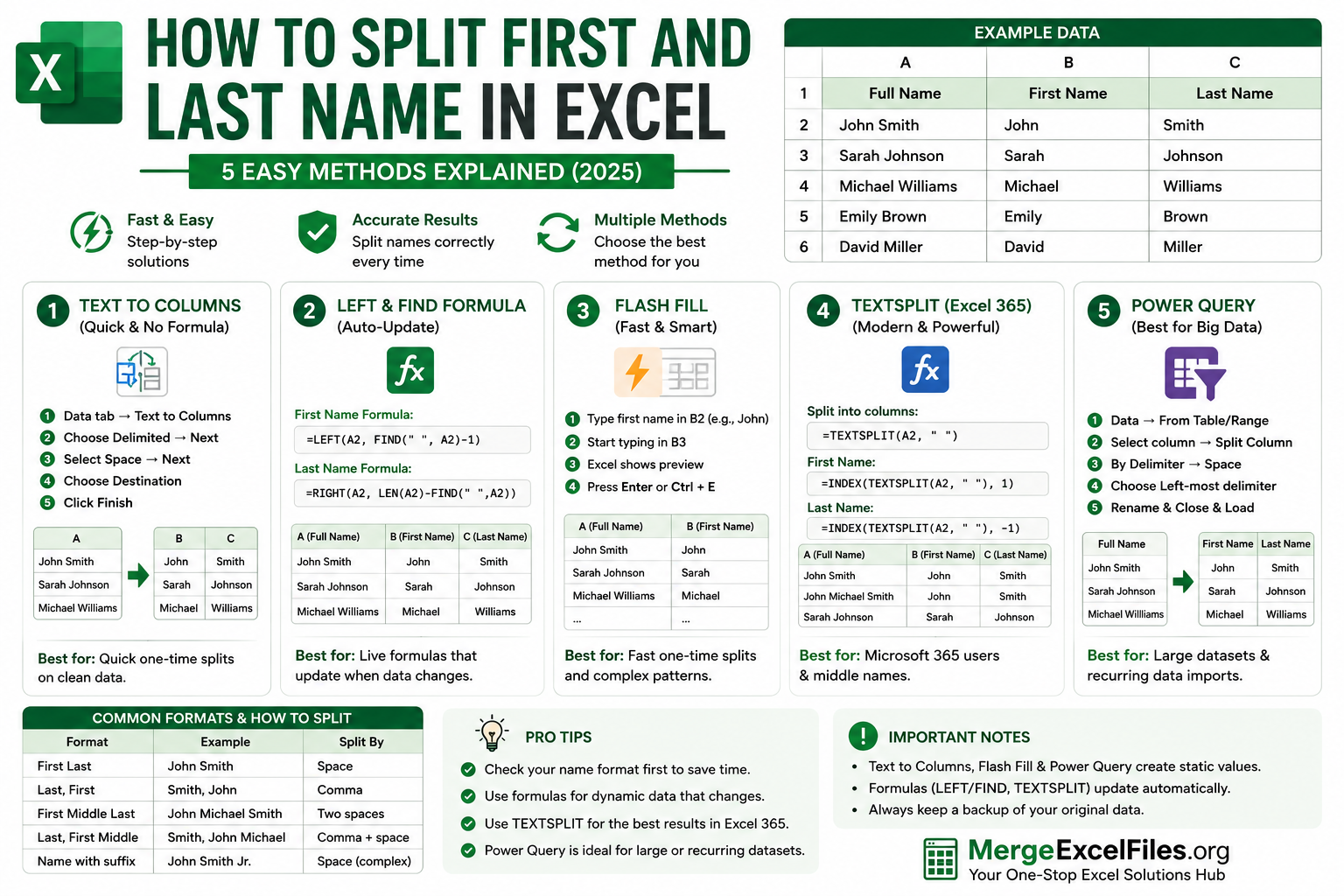
How to Split First and Last Name in Excel — Every Method Explained
Learn how to split first and last name in Excel using formulas, Text to Columns, Flash Fill, Power Query, VBA, and our free online tool. Step-by-step guide with examples.
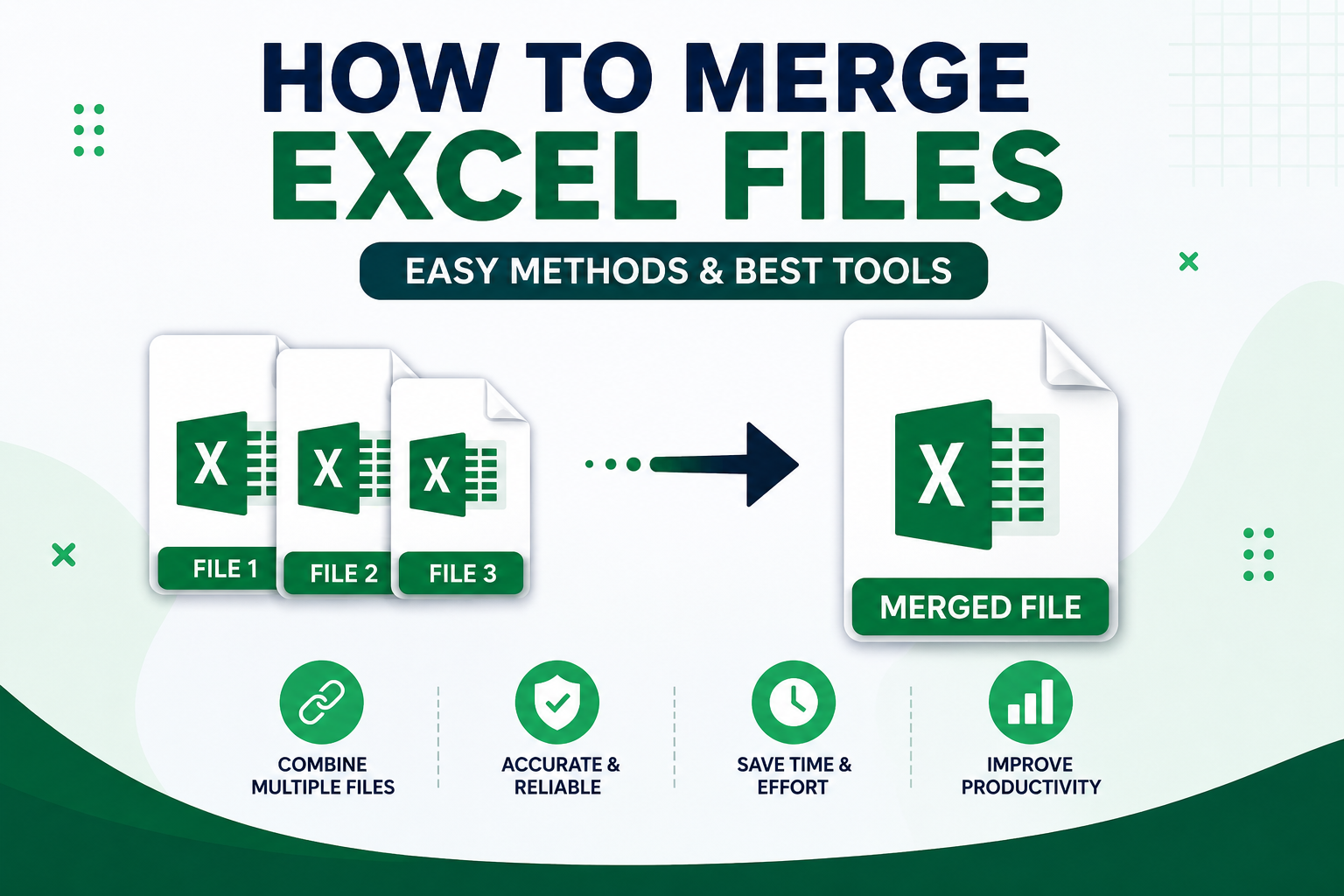
Merge Excel Files Online ! The Easy Way (No Software Needed
If you've ever sat at your desk staring at six different Excel files — all with the same columns, all from different team members — you know the pain. Copy. Paste. Scroll. Repeat. It's exhausting, and honestly, it shouldn't be this hard in 2025. The good news? You don't need to install anything, learn complex formulas, or bother your IT department. There are some really solid ways to merge Excel files online, completely free, and they work right from your browser. Let's walk through everything you need to know.
How to Merge Excel Files : The Complete Step-by-Step Guide
Whether you're managing sales reports, financial data, or HR records — learn every method to combine Excel files quickly, cleanly, and without errors.